 Calmly Writer

Documents
The panel that shows your folder of documents, to open, find, rename, move and delete them without leaving the app.
Documents in the main menu, or Ctrl+Shift+E⇧⌘E, opens a panel with the folders and documents of your default save folder, beside the text. It lists the documents the app opens and nothing else: other kinds of file, and hidden ones, are left out.
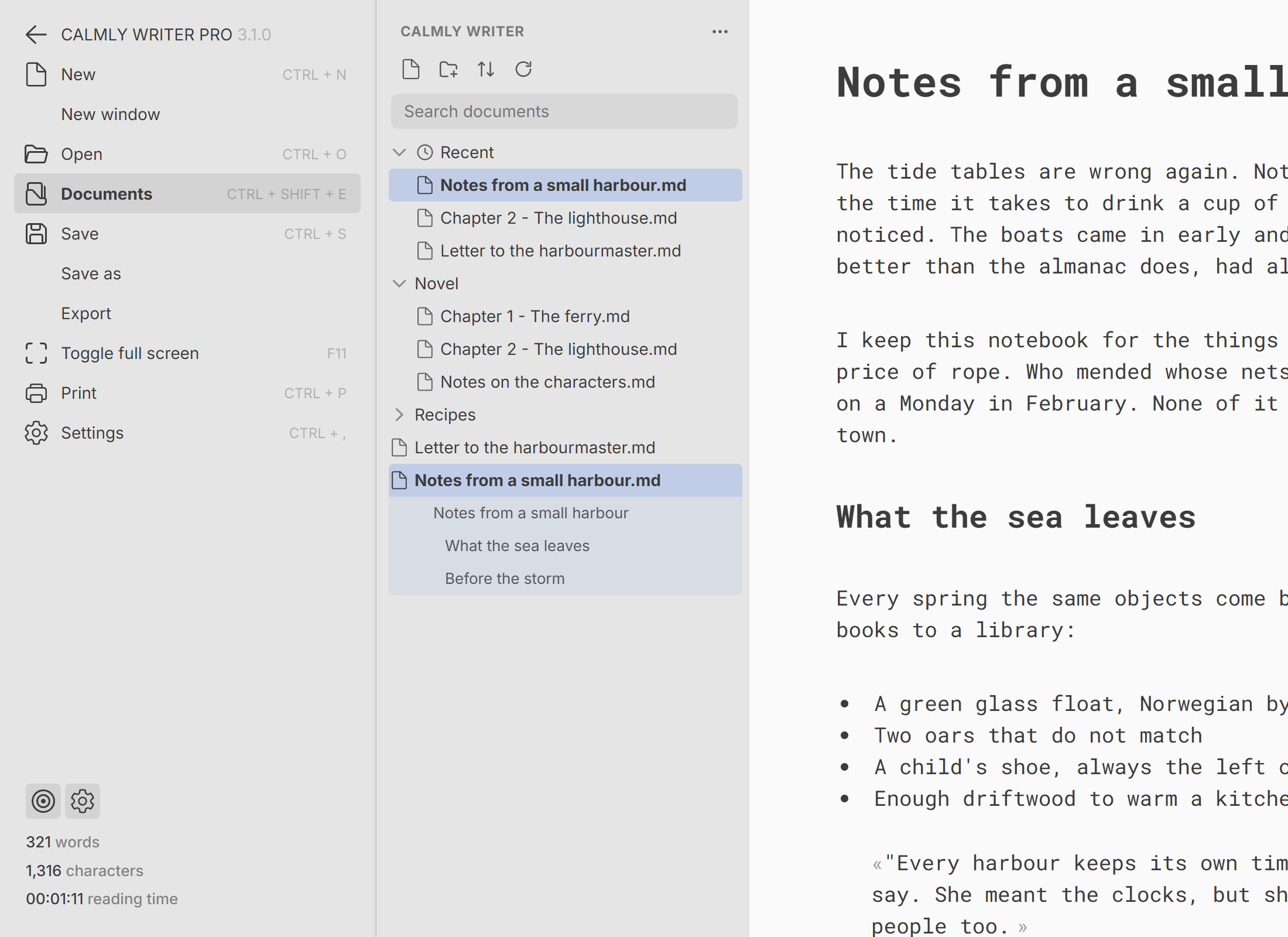
The folder it shows
The panel shows one folder with everything under it, not the whole disk: the Default save folder of , which is also where new documents are saved. On Windows, Mac and Linux that is Documents › Calmly Writer until you choose another. While that folder is empty or missing, and on Android until you have chosen one, the panel asks for a folder with Choose folder.
To change it later, … at the top of the panel has Choose another folder….
Opening a document
Click a document and it opens beside the panel, which stays where it is, so you can look through a folder one document after another. A document opened this way is a preview: its tab shows the name in italics, and the next document you click takes its place. It becomes a tab like any other as soon as you write in it or save it, or with Add to open documents in its right-click menu.
Double-click a document, or press EnterEnter, to open it and go to the text. The panel closes when you click the text, with EscEsc, or with Ctrl+Shift+E⇧⌘E again.
In a narrow window, and on a phone, the panel takes the whole width: there a single click or tap opens the document and goes to it.
The headings of the open document
The document you are working on is highlighted, with its headings listed under it. Click one to jump to it. They follow the tab in front, so the panel doubles as a table of contents that stays open.
Recent
Recent, at the top of the list, holds the last twenty documents you opened or saved, wherever they are, including those outside the folder. Hover over one to see where it is. A document you only looked at as a preview is not counted.
Right-click a recent document for Remove from Recent, which takes it off the list and leaves the file alone.
Searching
Type in Search documents and the list narrows to the documents whose name matches. From the second letter the search also looks inside them, in their headings and their text, and shows each match with the words around it. Click a match and the document opens with the search bar already on those words.
The search ignores capitals and accents, and looks for all the words you type, in any order.
New documents and folders
The first two buttons of the panel’s toolbar are New document and New folder: type a name and press EnterEnter. They are created in the selected folder, or next to the selected document. A new document is saved in the default format unless you type another extension.
Renaming, moving and deleting
Right-click a document or a folder, or press and hold it on a touch screen:
- Rename, or F2F2. The extension stays unless you type another. Renaming does not convert a document: if the new extension belongs to another format, the app asks first, and the way to change the format is Save as.
- Duplicate makes a copy next to the document.
- Move to… asks for the folder to move it to. With a mouse you can also drag it onto a folder.
- Delete, or DeleteDelete. On Windows, Mac and Linux it goes to the system’s trash, from where it can be restored; a folder with something in it asks first and says what it holds.
- Show in folder, on Windows, Mac and Linux, opens the system’s file manager on it.
A document open in a tab follows its file: rename or move it and the tab carries on under the new name, with its previous versions. Delete it and its tab stays open with the text, no longer tied to a file, in case it was a mistake.
Sorting
The sort button of the toolbar opens a small menu: Sort by name or Sort by date, in either direction, and Folders on top, which keeps the folders above the documents instead of among them. Sorted by date, each row shows the date it was last changed.
The last button, Refresh, reads the folder again. On Windows, Mac and Linux the panel notices by itself what other programs change in it.
From the keyboard
↓↓ and ↑↑ move through the list; →→ and ←← unfold and fold a folder; SpaceSpace opens a document as a preview and EnterEnter opens it and goes to the text.
On Android
The panel works the same on a phone or a tablet, with the folder you chose for autosave, which can be in the device’s storage or in a cloud service. Two things differ, because Android has no trash: a deleted document is gone for good, so the app asks before deleting it, and a folder can only be deleted once it is empty.
More in Files
The files Calmly Writer opens and saves, what each one keeps, and which to choose as the default.
Saving by hand or letting the app do it, where new documents go, and how they are named.
The open dialog, the recent files, and the other ways a document can arrive in a tab.
The copies the app keeps of every open document, how to go back to an earlier one, and how to get back a document you closed without saving.
What the app does when a file open in a tab is changed by another program, a sync service or another computer.
Word and PDF from the document on the screen, and what to use for HTML and Markdown instead.
Keeping documents in Google Drive, Dropbox or OneDrive, on the desktop and on Android, and what each service can and cannot do.