 Calmly Writer

Saving and autosave
Saving by hand or letting the app do it, where new documents go, and how they are named.
Save and Save as
Ctrl+S⌘S saves the document; the first time, it asks for a name and a place. Save as in the main menu saves a copy under another name or in another format, and the tab switches to the new file.
A tab with unsaved changes shows a dot. Whether or not you save, the app keeps backups of every open tab, so a crash or a closed window does not lose what you wrote.
Save settings
opens a small dialog:
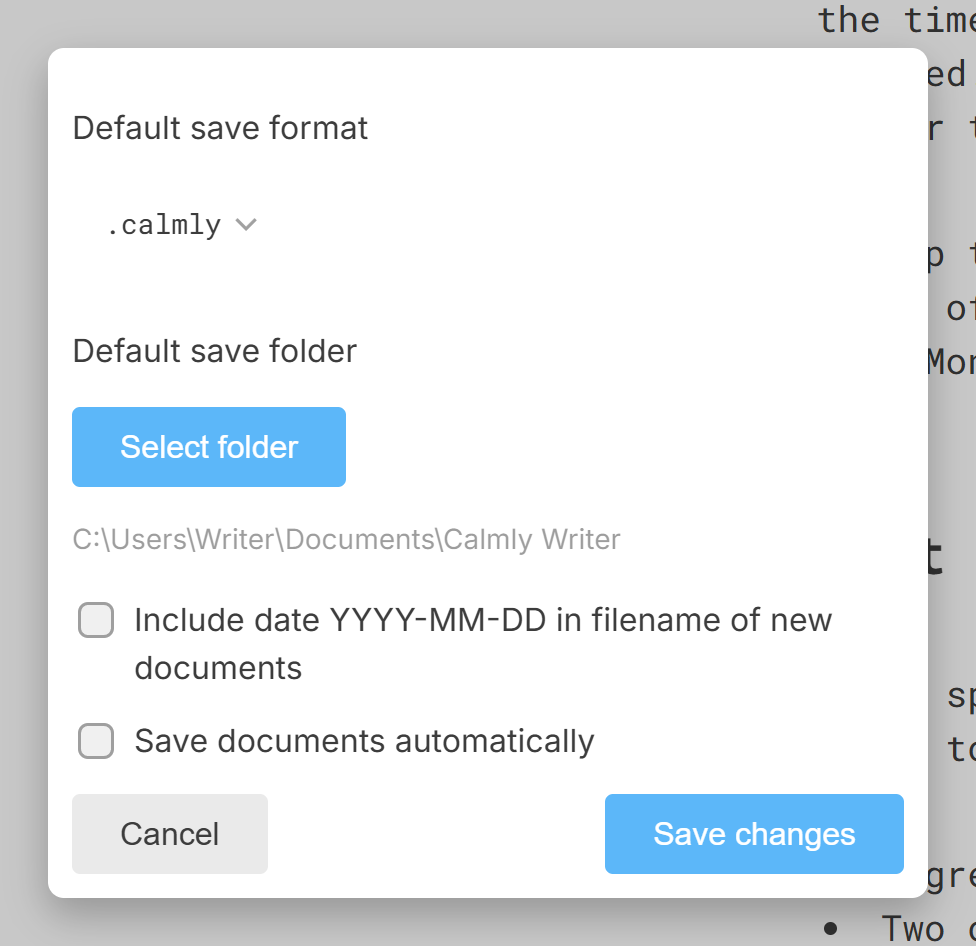
- Default save format:
.calmly,.md,.txtor.htmlfor new documents. - Default save folder: where the save dialog opens, and where autosaved documents go. On Windows, Mac and Linux it is Documents › Calmly Writer until you choose another with Select folder. On Android there is no default: you pick a folder the first time it is needed.
- Include date YYYY-MM-DD in filename of new documents: new documents are named
2026-03-10 Title, which keeps a folder of notes in order.
Autosave
Save documents automatically does what it says: the document is written to its file as you type, a couple of seconds after each change, and the Save entry disappears from the menu because there is nothing left to save by hand. It is off on the desktop and on by default on Android.
A new document that has never been saved gets a name from its first line (or Untitled) and goes to the default folder, in the default format. If the name is taken, it becomes Title (2). If you would rather name things yourself, leave autosave off and press Ctrl+S⌘S when you want to.
Autosave works with .calmly and Markdown files. A document opened from a .txt, .html or .docx is not autosaved, because those formats would lose part of what you wrote; save it by hand, or save it as .calmly or .md first.
More in Files
The files Calmly Writer opens and saves, what each one keeps, and which to choose as the default.
The open dialog, the list of recent files, and the other ways a document can arrive in a tab.
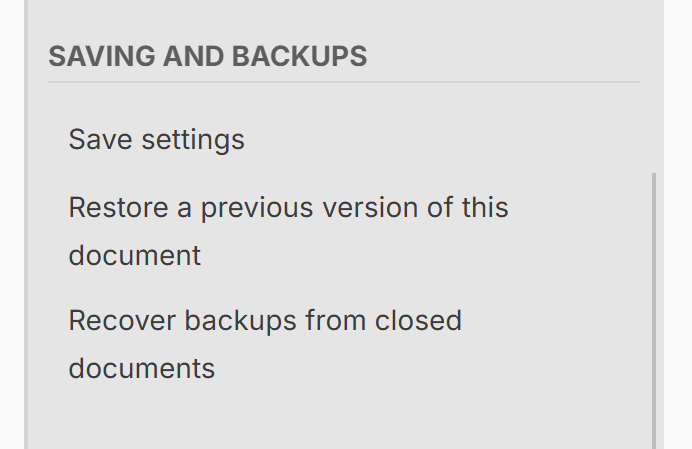
The copies the app keeps of every open document, how to go back to an earlier one, and how to get back a document you closed without saving.
What the app does when a file open in a tab is changed by another program, a sync service or another computer.
Word and PDF from the document on the screen, and what to use for HTML and Markdown instead.
Keeping documents in Google Drive, Dropbox or OneDrive, on the desktop and on Android, and what each service can and cannot do.