 Calmly Writer

Footnotes
Numbered notes that stay out of the way at the end of the document, and what becomes of them in Markdown, Word and PDF.
A footnote is a remark that would get in the way of the sentence: a source, an aside, a detail for the reader who wants it. In the text it is a small number; the note itself waits at the end of the document.
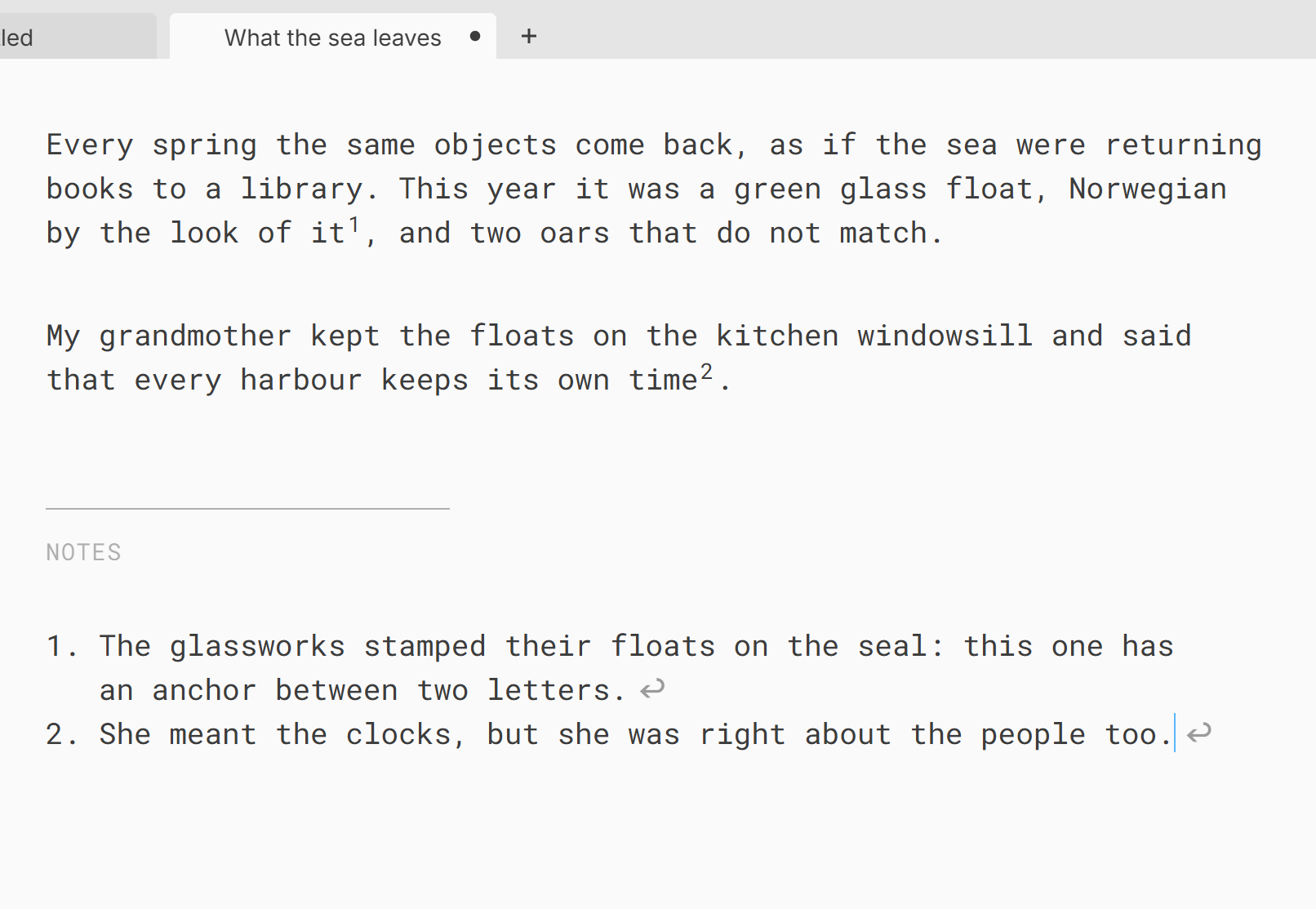
Adding one
Put the cursor where the number should go and press Ctrl+Alt+F⌥⌘F, or choose Insert footnote from the right-click menu. The number appears there and the cursor moves to a new note at the end of the document, ready for you to type it. On a touch screen the entry is under ⋮ in the format bar.
When the note is written, go back to where you were with Ctrl+Alt+F⌥⌘F again, with EscEsc, or with the ↩ at the end of the note.
You never number anything: the notes are numbered in the order their numbers appear in the text, and renumbered whenever you add one, remove one or move a paragraph.
Reading and editing
Click a number in the text to go to its note, and ↩ to come back. With a mouse, resting the pointer on a number shows the note beside it, without leaving the line.
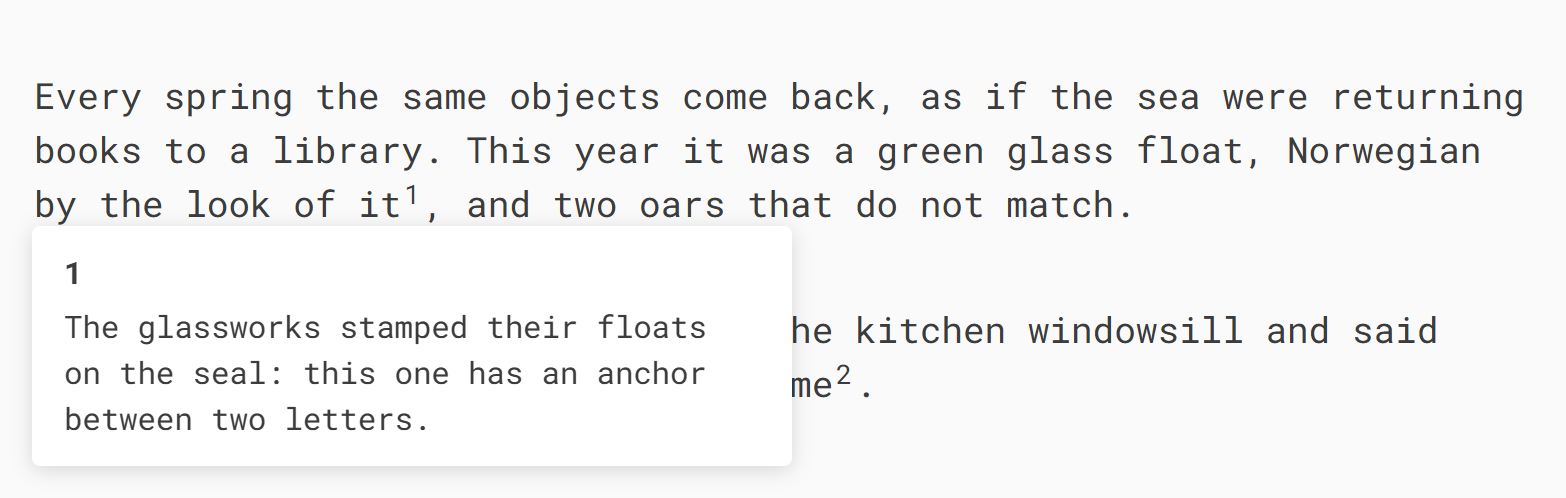
A note is text like the rest of the document: it can have bold and italics, links and more than one paragraph. The notes are not counted in the word count.
Removing and moving
To remove a footnote, delete its number in the text: the note goes with it, and Ctrl+Z⌘Z brings both back. A note has no life without its number, so there is nothing to tidy up at the end of the document.
Cut or copy a passage with a number in it and its note travels with it, to another place in the document or to another document.
A footnote cannot sit inside code. Turn a paragraph with footnotes into a code block and their text is kept in the block, written the way Markdown writes a note.
In the files
.calmlyand.htmlkeep the footnotes as they are..mdand.txtwrite them the way Markdown apps do:[^1]in the text and[^1]: the noteat the end of the file. A file from Obsidian, iA Writer or Pandoc opens with its footnotes as footnotes, and keeps the names it gave them ([^rose-quote]) when you save.- A Word document (
.docx) you open brings its footnotes and endnotes with it, all as notes at the end.
See Formats.
Word, PDF and print
Calmly Writer has no pages, which is why the notes sit at the end of the document while you write. Exporting to Word turns them into real footnotes, which Word places at the bottom of each page. In a PDF and on paper they are printed at the end of the document, under a rule.
Copy and paste
Text pasted from Word, or from a web page with footnotes, comes with its notes. Google Docs does not put the footnotes on the clipboard: to bring a document from there with its notes, download it as .docx and open that.
Text you copy from Calmly Writer to another app carries the numbers, and the notes after it.
More in Writing
The Markdown shortcuts that turn into headings, lists and emphasis while you type, and the ones you can turn off.
The small toolbar that appears over selected text, and the reminder of shortcuts that shows when you hold Ctrl or Cmd.
Six levels of heading, the panel that lists them, and the keys that move through it without touching the mouse.
Bulleted, numbered and checklist items, nesting them with Tab, and turning one kind of list into another.
Links to web pages, to other documents on your disk and to headings in the same document, and how to follow them.
Four ways to put a picture in a document, the difference between embedding and linking one, and what the editor does not do with images.
The slash menu that inserts blocks, the toolbar that edits tables, and the rules that keep them compatible with Markdown.
Notes attached to a passage, in three colours, which travel with the document and never print.
Curly quotes, dashes, ellipses and arrows written for you as you type, the quotation marks of your language, and how to turn each one off.
The spell checker and its languages on each system, adding words to the dictionary, and the language of the app itself.
Right-to-left writing for Arabic, Hebrew, Persian and other scripts, per document or for every new document.
Searching the document or every open tab, and a replace that keeps the capitals of what it finds.
What happens to formatting when text comes in from elsewhere or goes out, and the two ways to copy a document as code.