 Calmly Writer
Calmly Writer on your Chromebook
Chromebooks can install Android apps, so the simplest way to write with Calmly Writer on ChromeOS is the Android app: two clicks from the Play Store, no Linux and no terminal. It's a one-time purchase — $16.99, no subscription.

Requires a Chromebook with the Google Play Store enabled.
Why the Android app is the better route
- It's the same Calmly Writer, not a cut-down mobile version: every feature of the desktop app is there.
- It installs like any other Chromebook app and opens in its own resizable window.
- It opens documents straight from the Files app — Markdown, Word, HTML and plain text, including files kept in Google Drive.
- There is no Linux container, so there are no folders to share one by one and nothing extra to keep updated.
The desktop app can also be made to run on a Chromebook through the built-in Linux environment, but since both apps have the same features there is little reason to: it's a long setup and your documents end up inside a container. The instructions are kept below for anyone who wants them.
Advanced: the desktop app through Linux
Not the recommended route on ChromeOS. Enabling Linux takes several steps, the app runs in a container that cannot see your Chromebook folders until you share each one, and some Chromebooks need a GPU flag switched on before text renders correctly. Unless you need the desktop version specifically, install the Android app above instead.
The desktop app is covered by the pay-once desktop license, which also covers Windows, Mac and Linux and can be tried free for 14 days.
Enable Linux on your Chromebook
First, in your system settings, you must turn on Linux (beta).
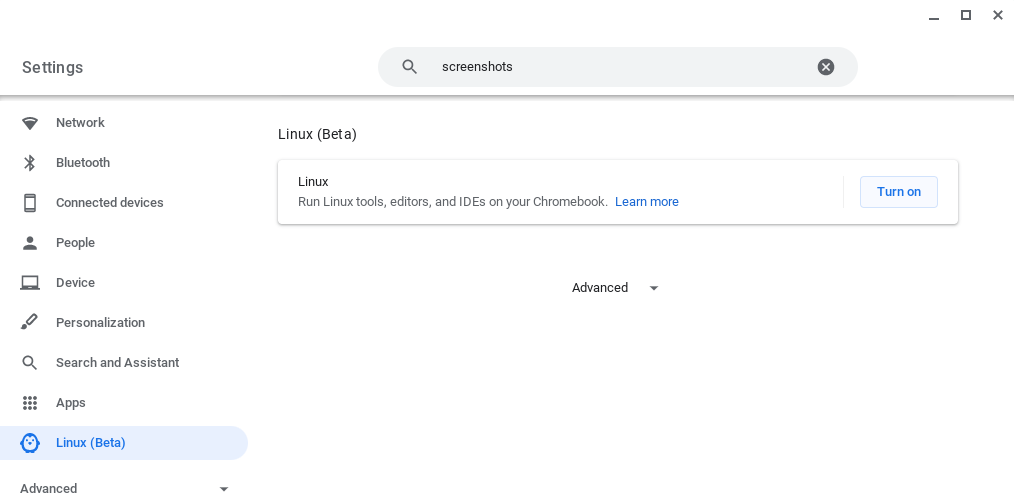
After following the on-screen instructions to configure the Linux environment (just accept the default values), a new terminal window will open.

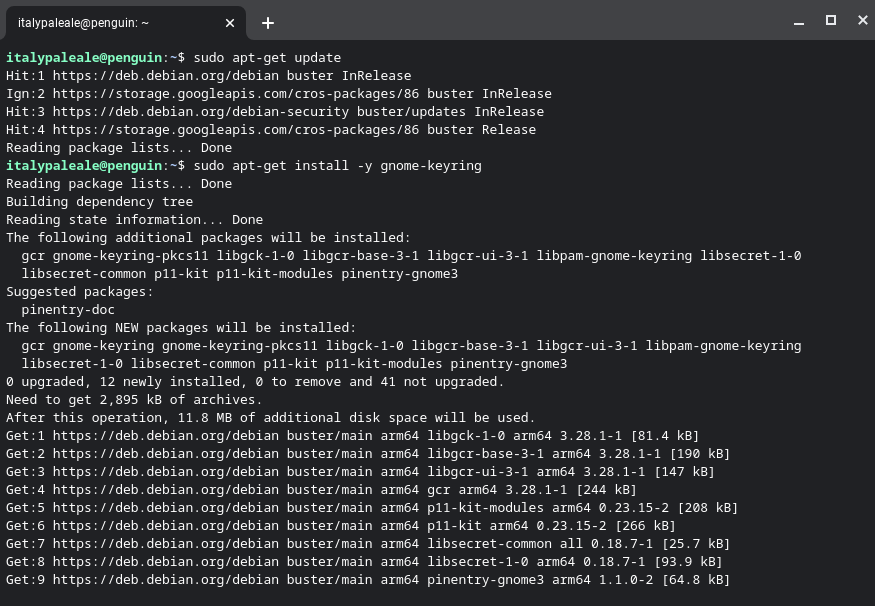
Before installing Calmly Writer it is necessary to run a couple of commands in the terminal, to make sure we have all the necessary packages updated.
    sudo apt-get update
    sudo apt-get install -y gnome-keyring
The output will be similar to this:
Download and install Calmly Writer
From the following download buttons:
- For Chromebooks running an Intel or AMD chip, pick Debian Intel/AMD
- If your Chromebook is running on an ARM64 chip, pick Debian ARM64 instead
 Debian Intel/AMD
If you're unsure what kind of CPU your Chromebook is using, run the command dpkg --print-architecture in the Linux terminal.
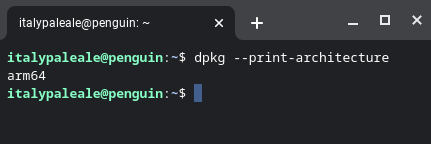
After downloading the package, simply double click on it to install it. After the installation is complete, you will find Calmly Writer inside the "Linux apps" folder.
Display problems
If you experience display problems when you start using Calmly Writer, such as garbled text when typing or deleting characters:
- Open Chrome browser
- Type chrome://flags in the Google Chrome address bar and press Enter
- Enable Crostini GPU Support
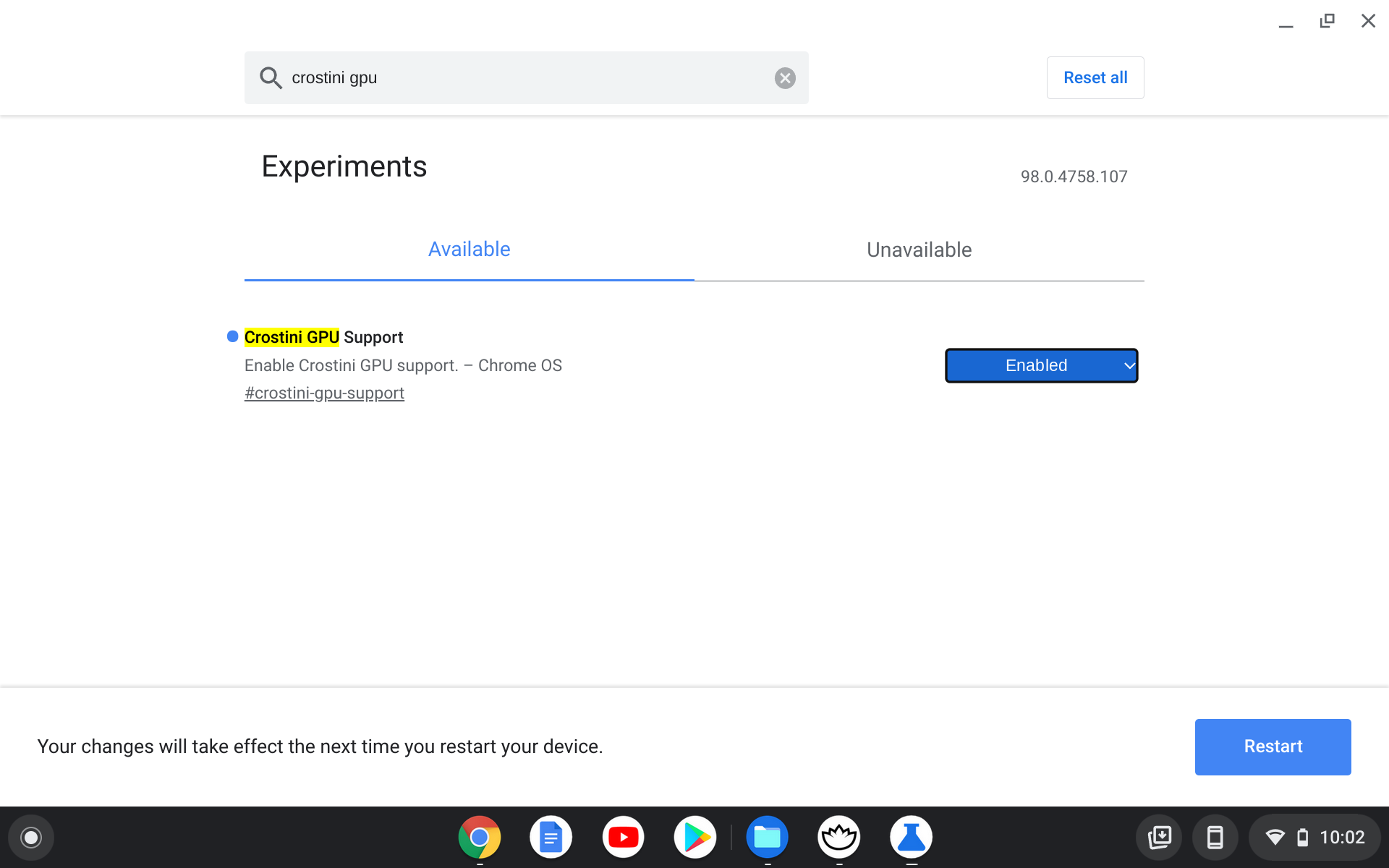
The system must be restarted for the changes to take effect.
Share folders between your Chromebook and the Linux container
Linux applications that are installed on Chrome OS run in a container. That means that these applications do not have direct access to the folders and files on your Chromebook.
To grant Calmly Writer access to any folder on your Chromebook just open the Files application, and right-click on the folder you want to share and select "Share with Linux". For example, it might be a good idea to share the Google Drive folder with Linux.
To access the shared folders from Calmly Writer you must open the "mnt/chromeos" folder. Remember that from the Calmly Writer settings you can define the default save folder.
References
Special thanks to "Learning with VS Code on Chromebooks", on which this document is based.